


DALI device control via MQTT
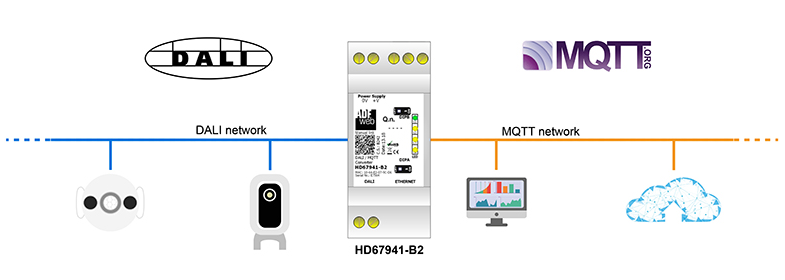
In this article, we'll show how to handle control of DALI devices using the MQTT protocol. We'll use a commercial converter to do it. If anyone knows how to handle this gracefully on the open platform as Arduino, we'd be happy to share here!
Hardware
DALI light or tape, preferably 24V
DALI driver - dimmer or switch
DC 24V Source
HD67941-B2 - DALI / MQTT converter from ADFWEB
Pi-Home - if you don't have it, see How to section under Smart Home
Software
OpenHAB
SW67941
Application
MQTT
Install Pi-Home and get the MQTT broker up and running as described in How to. Test that the MQTT broker is operational. Connect via SSH in two terminal windows:
First Window - Publish MQTT Message
mosquitto_sub -h localhost -t 'DALI' -u 'openhabian' -P 'yourpassword'
Second window - run the following code to see the result if the message is intercepted
mosquitto_pub -h localhost -t 'DALI' -m '{"channel": 3,"value": 230}' -u 'openhabian' -P 'yourpassword'
In this case you should see in first window:
{"channel": 3,"value": 230}
DALI
We connect the DALI/MQTT converter to the 24 V power source and connect it to the DALI bus (in this example, the DALI dimmer that powers the LED belt connected with green lines). The DALI driver will also want external power supply according to the light voltage. See the wiring diagram on our test system below.
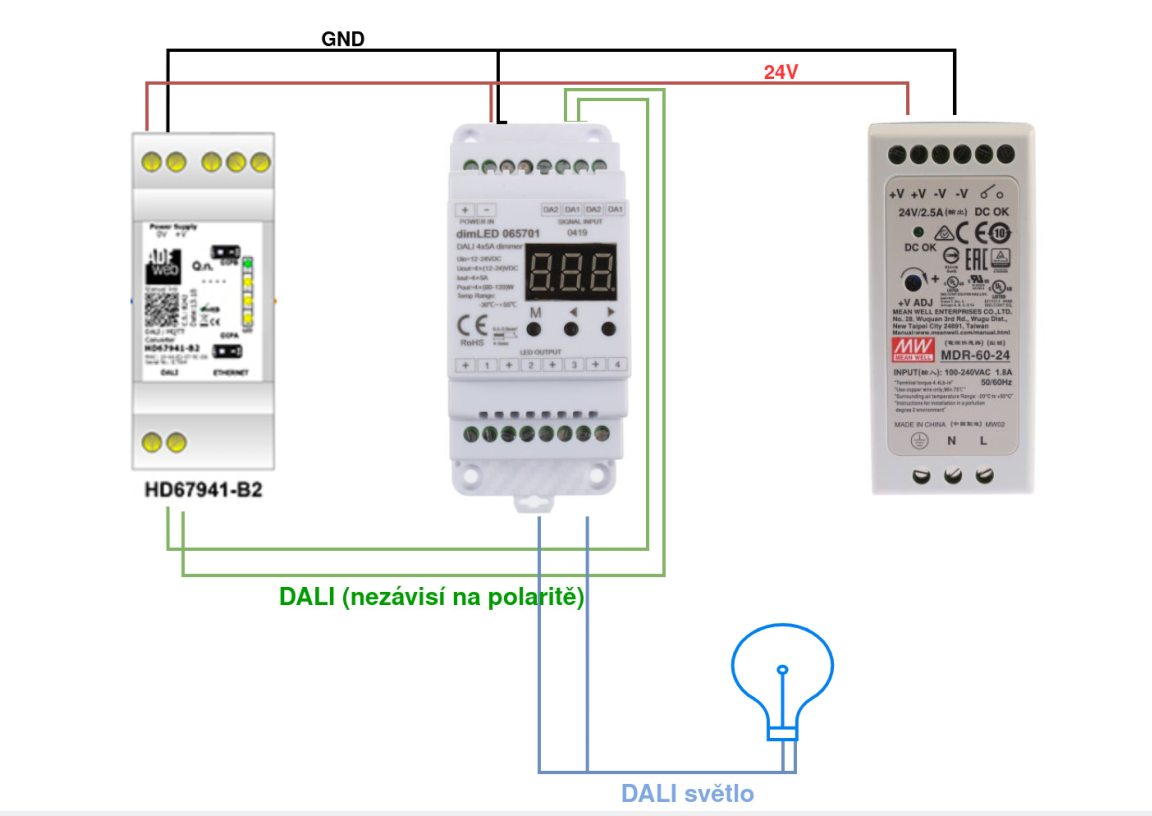
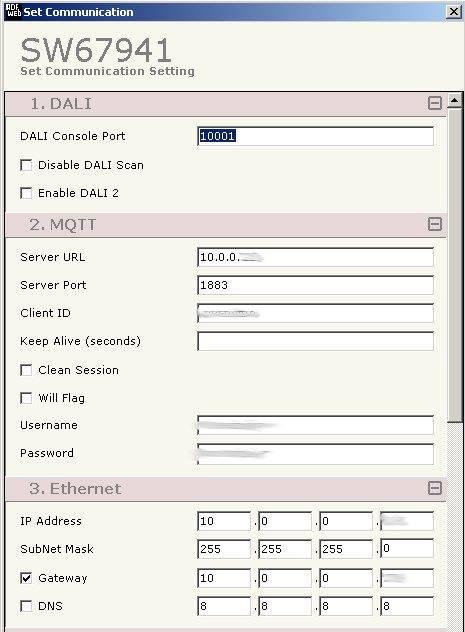
When plugged in, we turn on the power supply and plug a cable into the LAN converter. Under Windows (unfortunately) we will install a program from ADFWEB - SW67941. Use this program to configure the converter. After running the program, choose Set Communication and fill in the MQTT part and section for the LAN correctly. In our case, we don't use Wifi. See example below:
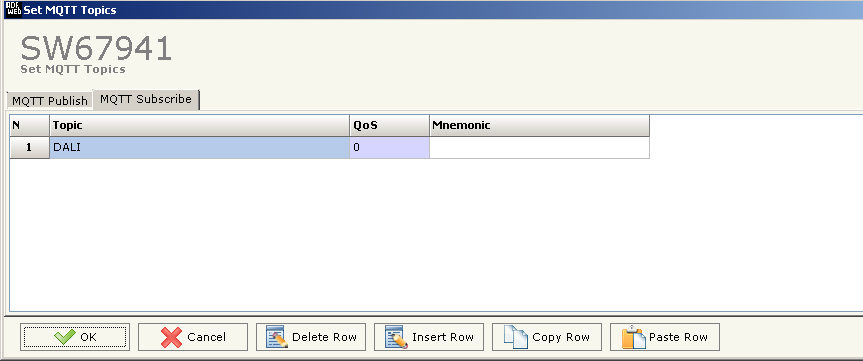
Next go to the MQTT Set topic. Here we fill only Topic to receive commands from MQTT in the MQTT Subscribe tab. See below.
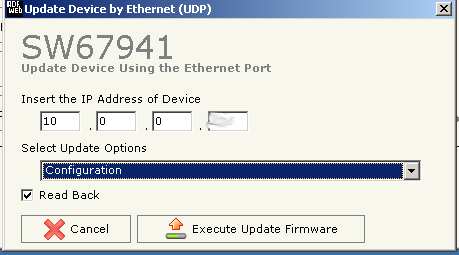
After the correct settings, upload the code to the converter via Update Device UDP. Only the configuration is sufficient.
Functionality validation
Now all you have to do is type command in the SSH on raspberry Pi, e.g.:
mosquitto_pub -h localhost -t 'DALI' -m '{"channel": 1,"value": 130}' -u 'openhabian' -P 'yourpassword'
which should dim the light (Device ID 1) from 255 to 130. If you would like to see directly how many devices are in DALI and with which IDs, you can use the software from ADFWEB - Test DALI.
After this simple test, you can create items in OpenHAB as you want and use the MQTT to dim, on/off or set rules to schedule various actions.